Placement Letter
Accessing the Placement Letter Tab#
- Go to Status and select Jobs.

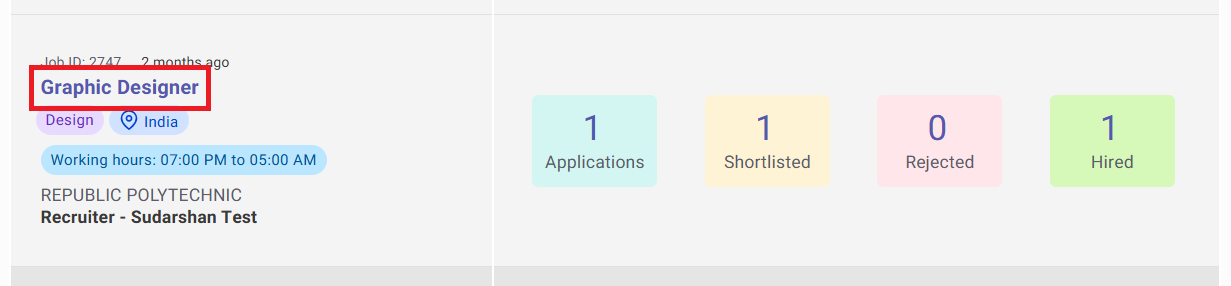
- From the Jobs page, click the job name with hired applications.
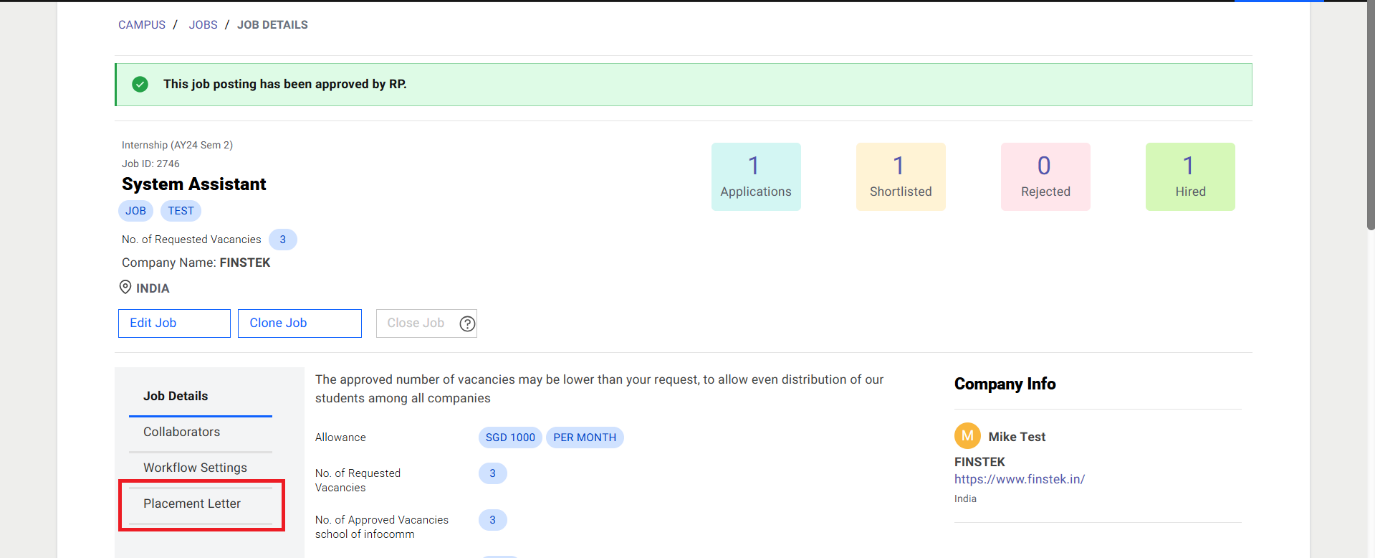
- On the Job Details page, select the Placement Letter tab.
Note
The Placement Letter tab is displayed only for jobs with hired students.
Downloading Placement Letters#
Open the Placement Letter tab on the Job Details page.
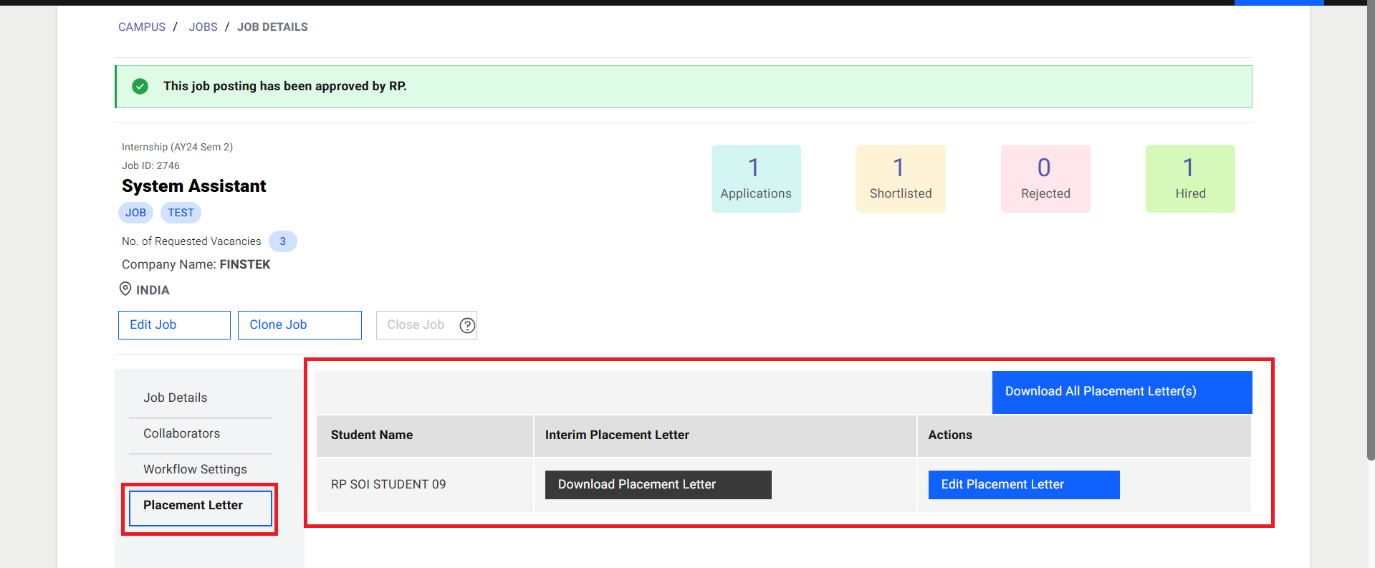
View the list of hired students.
- A separate record is generated for each hired student.
- A separate record is generated for each hired student.
- Click Download Placement Letter to download the placement letter for the selected student.
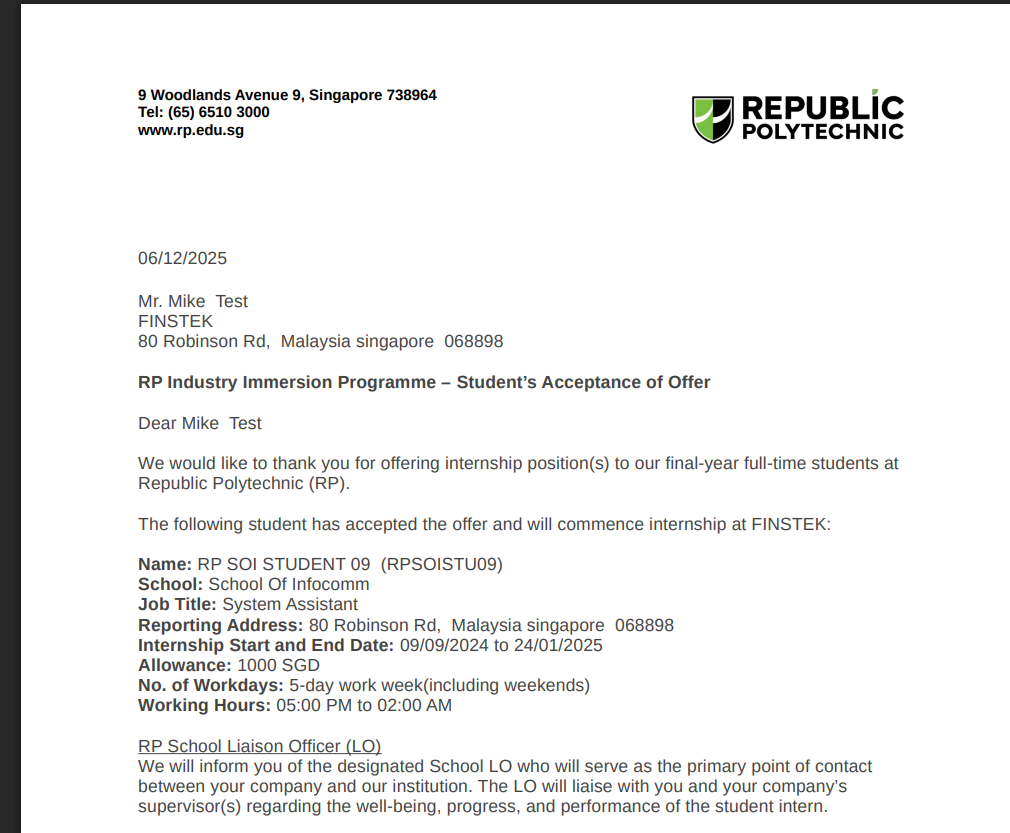
- The placement letter is auto-generated once a student is hired.
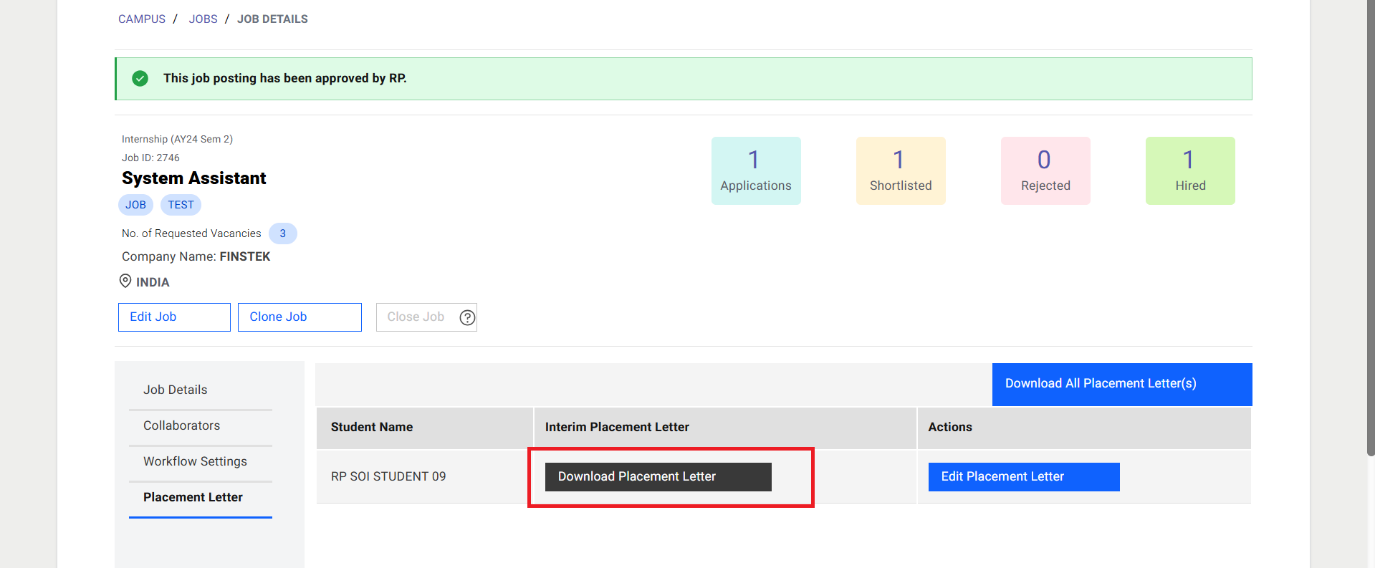
- The placement letter is auto-generated once a student is hired.
File naming format:
Internship Placement Letter – [Job Name] with [Company Name] – [Date of Download].pdf

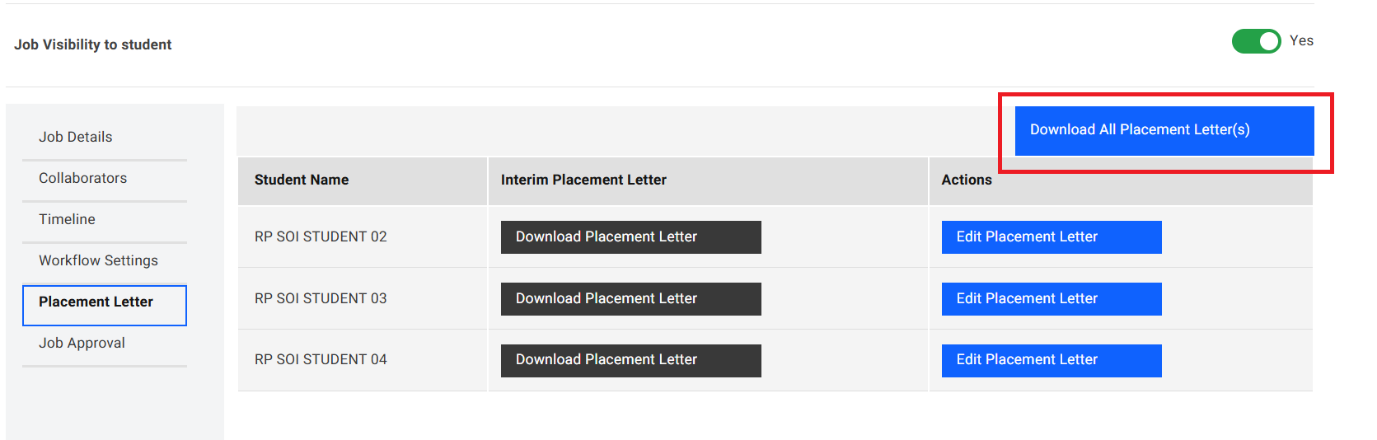
- To download all placement letters at once, click Download All Placement Letter(s).
Editing a Placement Letter#
Under the Placement Letter tab, click Edit Placement Letter for the selected student.

Update the internship start date and/or end date, provide a reason for the change, and click Submit.
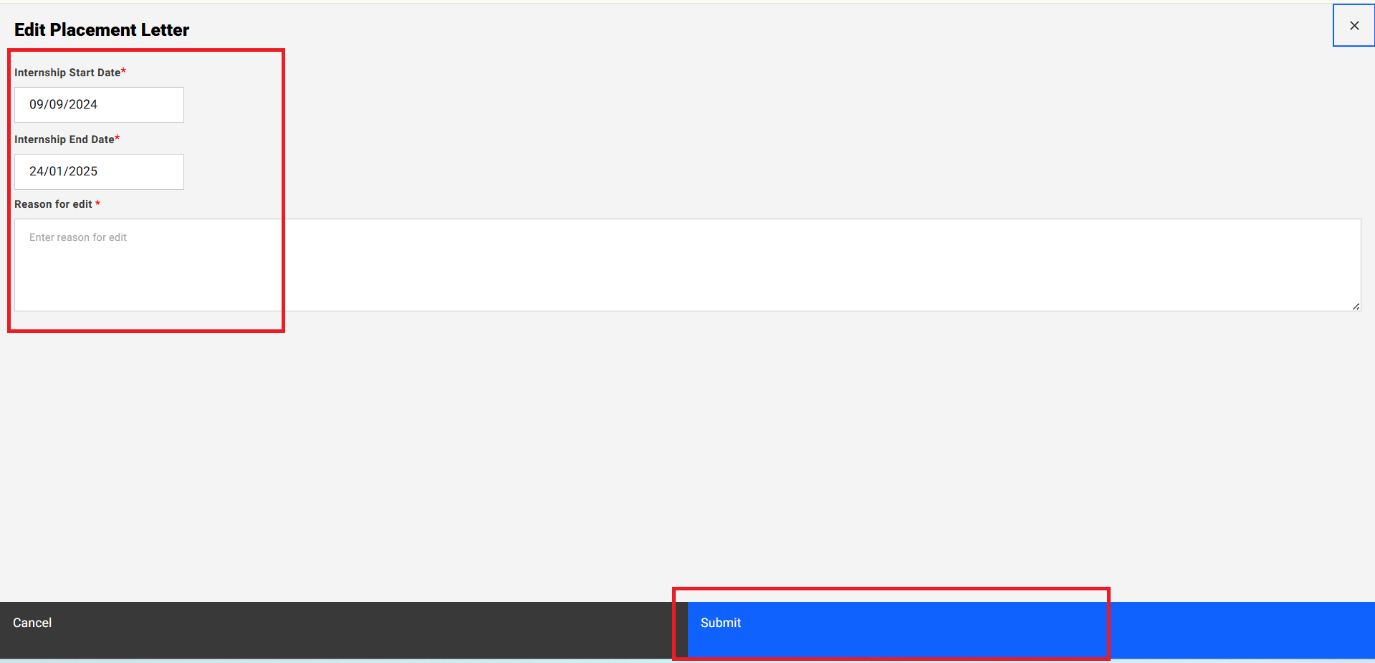
A success message will be displayed upon successful submission.


Important Notes
- A banner will appear on the Job Details page if any placement letter is pending approval.
- A "Pending Approval" tag will be shown for placement letters under review.
- Please note that schools may decline requests to change a student's internship start date, as such variations can affect assignment timelines. Schools generally prefer all students to commence their internships on the same day.

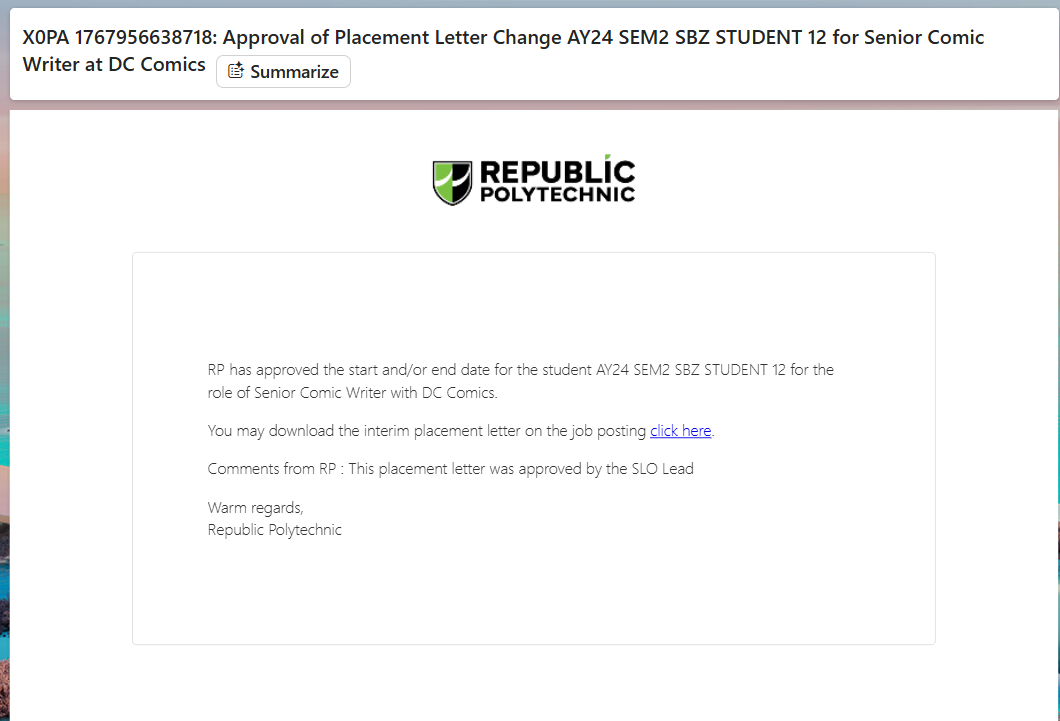
Approval of Placement Letter#
- Once the RP Admin team approves the changes, the hiring manager/employer will receive an email notification confirming the approval.