Company Lead Toggle
Viewing your Role#
- Click My Profile to view your assigned role (Company Lead or Company Supervisor).
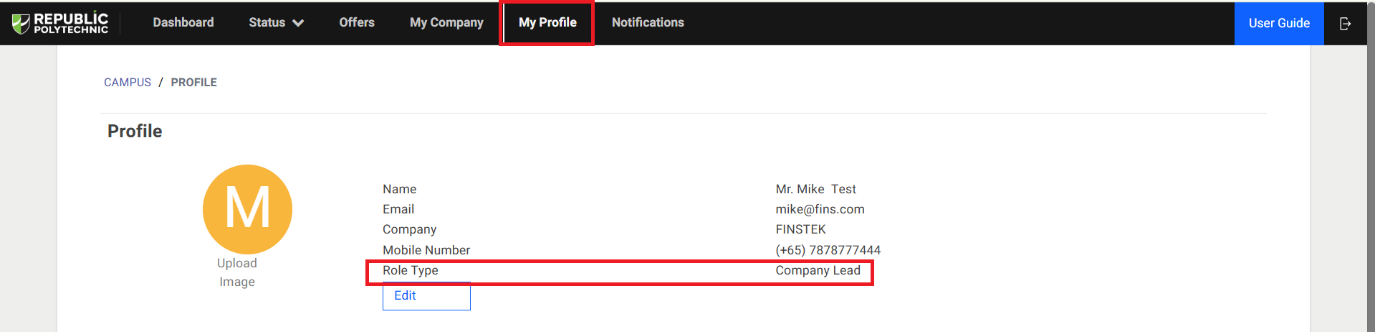
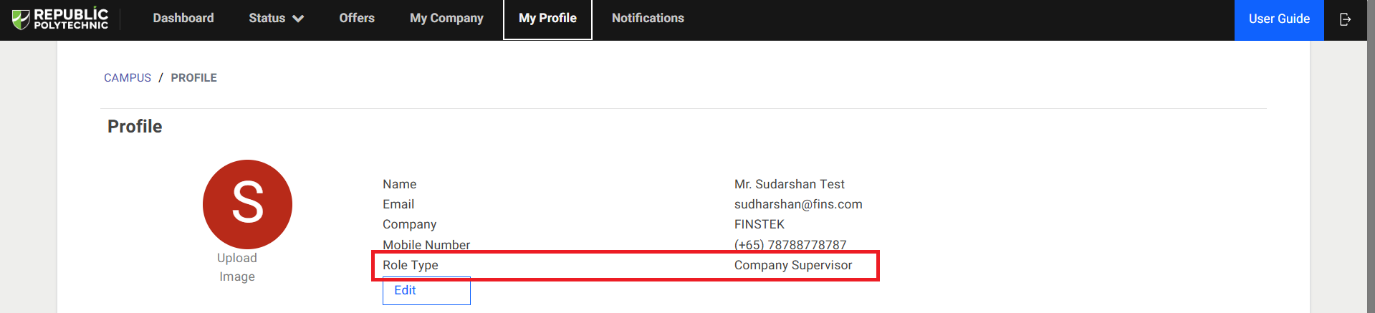
- Users with the Company Lead role will see the following text displayed below their username on the Dashboard: (Company Lead – Administrator access to all jobs posted by other users under the same company)

Adding Employers to the Company (Company Lead Only)#
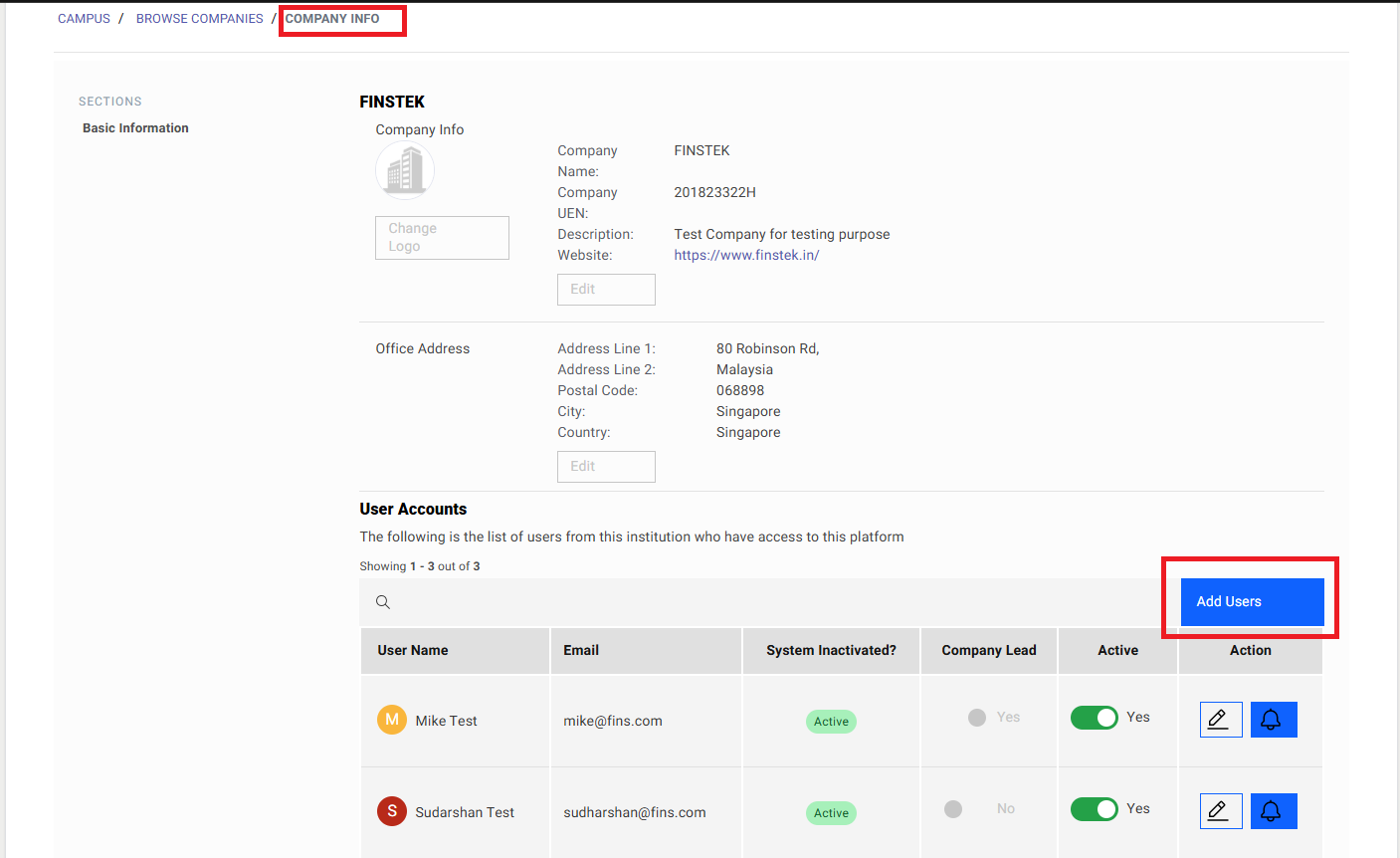
Click My Company

Click Add Users above the User Accounts table.
note
Only users with the Company Lead role can view and perform administrative actions in the User Accounts table.
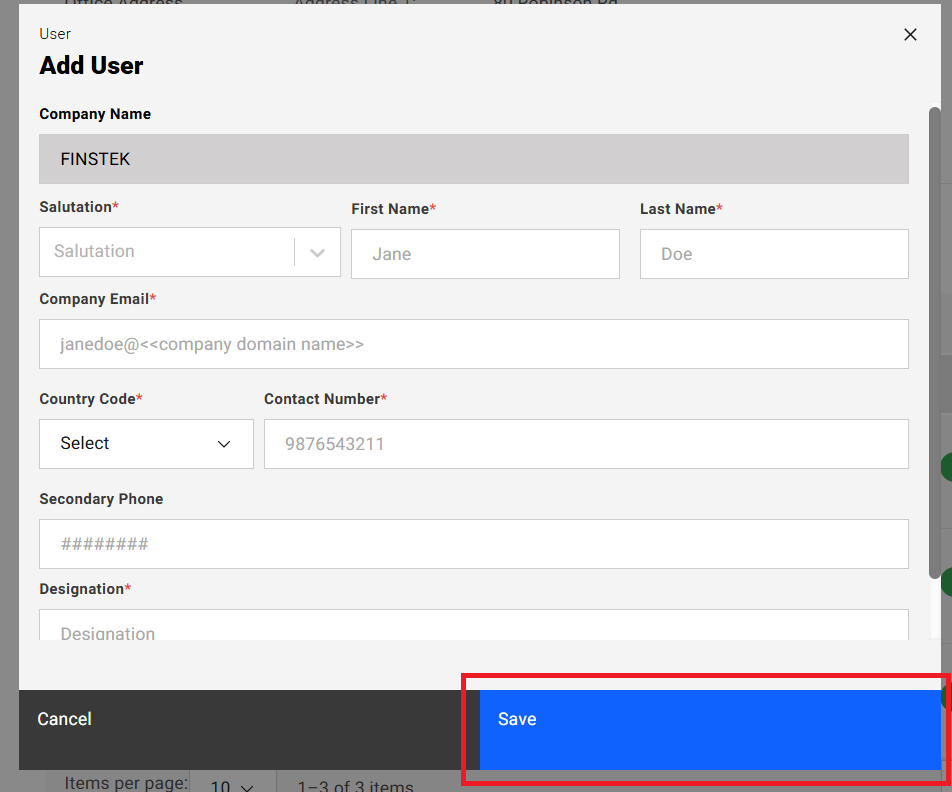
- Enter the required employer details and click Save.
- A new employer account will be created successfully.
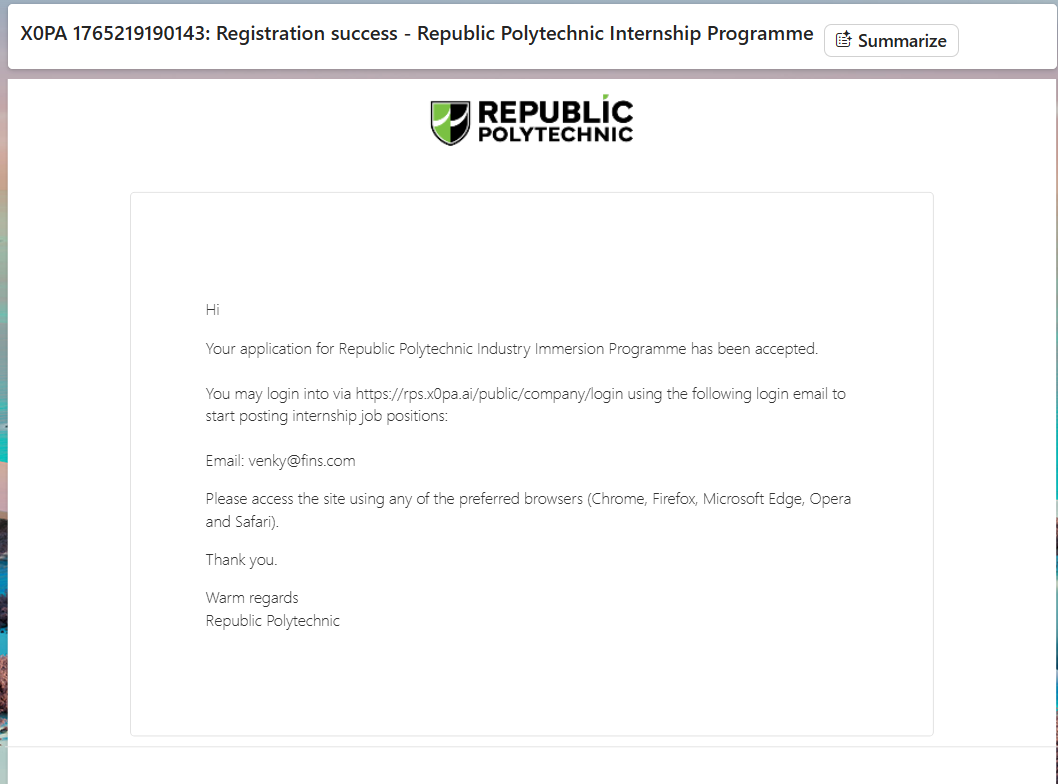
- The newly registered employer will receive a notification email.
Editing Employer Details (Company Lead Only)#
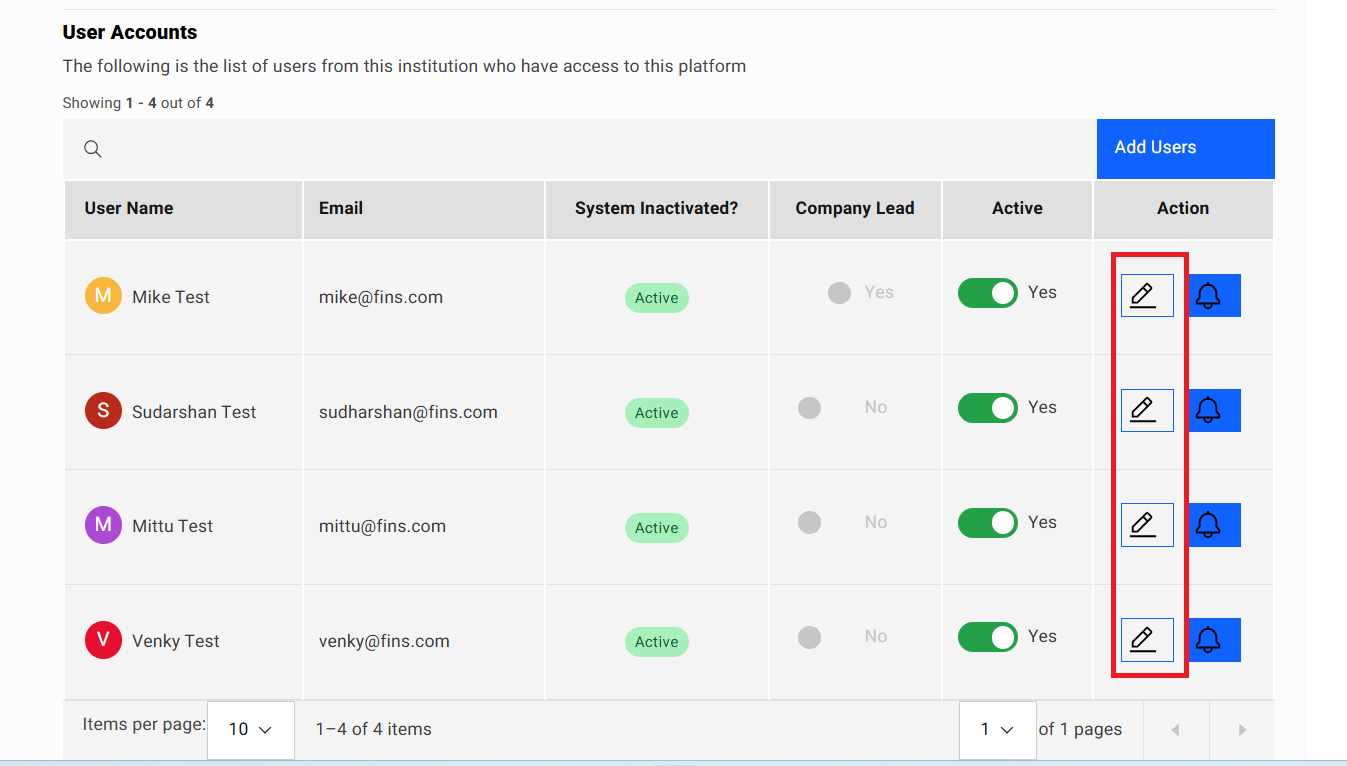
In the User Accounts table, click the Edit (pencil) icon next to the employer you wish to update.
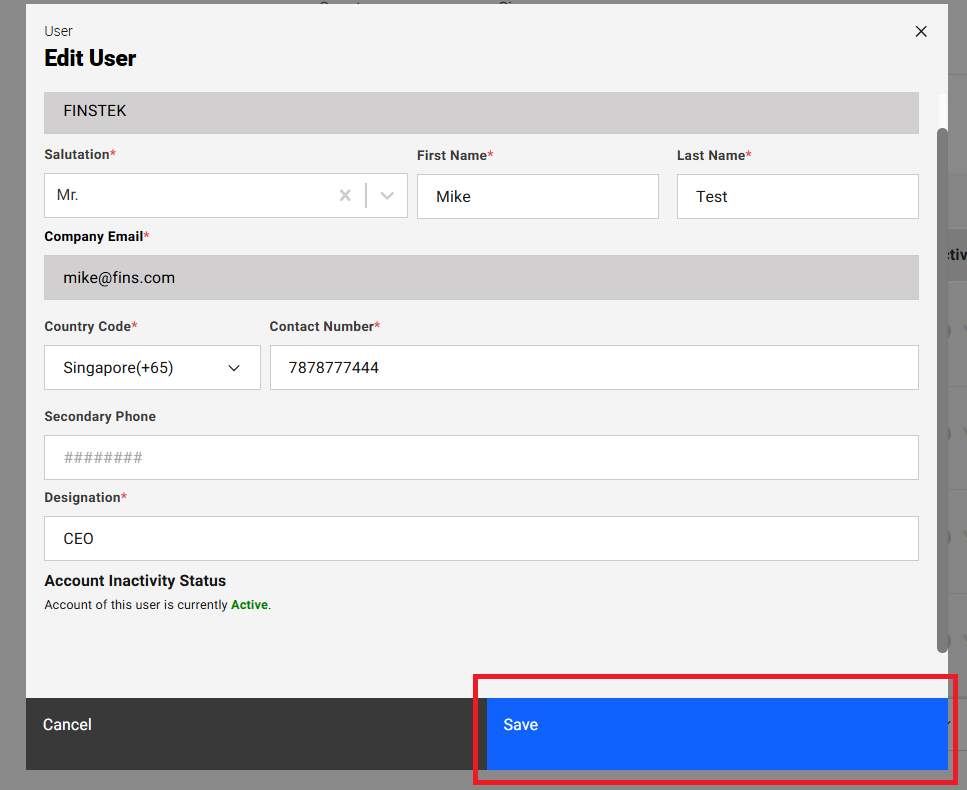
Update the required details and click Save to apply the changes.
note
Only users with the Company Lead role can edit employer details.
Jobs Posted by Users#
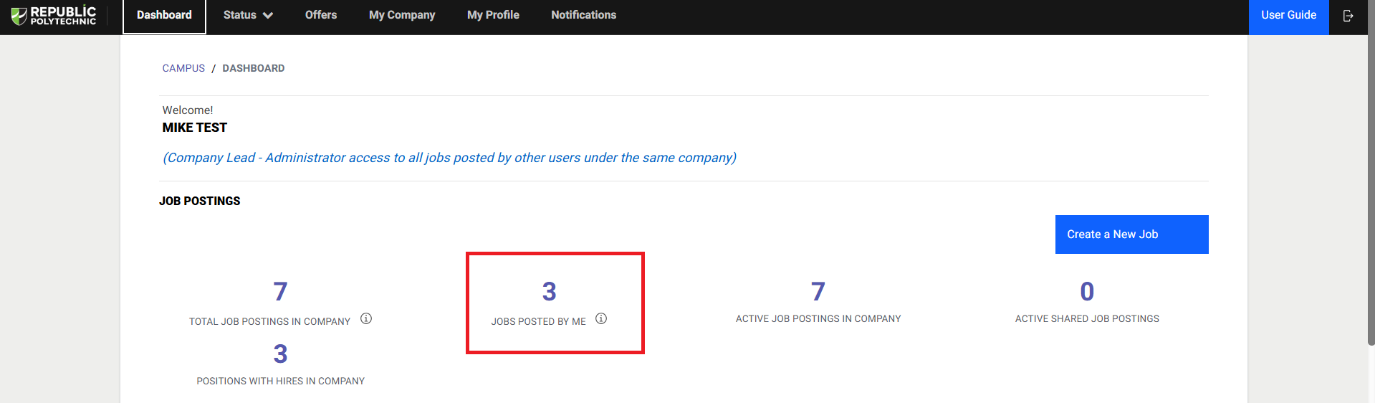
- The Jobs Posted By Me section displays the number of jobs created by each user.
- This section is visible only to Company Lead users on the Dashboard.
Role Permissions#
Company Lead#
Company Leads have permission to:
- Post jobs
- Manage interview processes
- Hire candidates
Company Leads have administrator access to all jobs posted by other users within the same company.
Company Supervisor#
Company Supervisors have permission to:
- Post jobs
- Manage interview processes
- Hire candidates
Company Supervisors have access only to:
- Jobs they have posted
- Jobs shared with them as a collaborator (Administrator or Team Member role)